Edit Screenshot Text Online. Fresh wording. The same interface.
Edit screenshot text in a heading, label, or short phrase without recreating the whole screen. Select the words to replace; pixels outside that rectangle stay unchanged. Compare your update and download a full-size PNG.
Sign in for 2 free editsOne precise area at a timeFull-size PNG download
Editor
1Upload your image
2Select and replace
3Compare and download
Single text edit
Replace what you selected
Loading a sample does not run AI or use credits. Check the selection and text before applying.
Step 1: Upload an image, then drag a box around one text area.
Loading…
Each generation uses 1 credit. Purchases are closed; editing pauses when your free credits run out.
The selected area and some surrounding context are sent to a third-party AI provider. Clear, horizontal text works best. Chinese edits are experimental; review every character before downloading. Results are temporary.
Choose free manual editing for a flat background, or use AI for more complex repairs. Each account receives 2 free credits once. They do not reset daily. JPG, PNG, WebP · 10 MiB
ONE IMAGE. A NEW POSSIBILITY.
Good designs deserve a second life.
Refresh a workspace heading or prepare your next presentation. Start with the product screenshot, then explore four more ways to update text in a flattened image.
Prepare a product walkthrough using this fictional studio workspace. Replace its main heading without recreating the navigation, image cards or status labels. Open the full-size result to check the smaller letter details before adding it to a presentation.
Reuse a finished event poster when the theme or season changes. This floral design pairs a serif title with rich photography. Select the whole headline, replace the words and compare the letter shapes before you share the next edition.
Refresh a travel video cover without starting your artwork again. The large white title sits over a mountain photograph, so the result needs more than correct spelling: slide across the trees and letter edges to inspect the background, contrast and spacing.
Turn an existing coffee graphic into a starting point for another product. Change the blend name while leaving the cup, beans and supporting copy outside the selection. A replacement of similar length gives the new wording room to fit naturally.
Adapt a travel post for a different editorial angle. The postcard photograph and blue layout stay outside the selected title. Try your own short phrase, then check how its weight and line length work with the rest of the composition.
Original sample designs with licensed photography. Every after image is an actual output from this editor, without manual retouching. Letter shapes and spacing can vary; open the full result to inspect it.
Edit Screenshot Text: Compare a Real Heading Replacement
Our first example replaces a 44 px Arial Bold heading in a product screenshot. We changed “Project overview” to “Launch overview” with the real editor service. Compare the heading and neighboring elements below. This is a clear heading test, not evidence that tiny button labels will work equally well.
BeforeAfter
“Project overview” → “Launch overview”Original sample: Arial Bold, 44 px. The replacement is spelled correctly and retains the dark heading style. Letter edges are slightly softer. The sidebar and cards remain outside the edited rectangle.Open the original image or the edited image to inspect it at full size.
Replacing an 18 px Label Beside a Checkbox
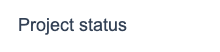
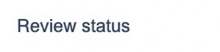
Smaller interface text needs a closer look than a large heading. In this original demo screen, we changed “Project status” to “Review status.” The source uses regular Arial at 18 px. We selected a 220 × 52 px area around the phrase, leaving the checkbox, toggle, and row divider outside it.
BeforeAfter
Selection detail. The selected label, enlarged for comparison. Check the weight and edge softness against the original. These are unretouched crops of the images above.
“Project status” → “Review status”Original sample: regular Arial, 18 px, on a white settings panel. This is a new real FLUX result using a lossless PNG crop and PNG model output. The saved prediction was replayed through the editor for comparison and download, without retouching. Both words are correct; weight, spacing, and edge softness still differ from the source. The checkbox, toggle, and divider remain unchanged.Compare the earlier result with compressed input and output.Open the original image or the edited image to inspect it at full size.
The first result looked heavier and softer than the source. We found that preparing the crop and saving the model output added two lossy compression steps. The editor now keeps the crop as PNG when it fits the upload limit and requests PNG from the model. This prevents additional compression damage; it does not make AI-generated letters identical to the original font.
The new real result above spells both words correctly, but differences in weight, spacing, and edge softness remain. The earlier result is linked for comparison. These are separate model runs, so the visual differences cannot be attributed solely to the format change. For a screenshot that must match the interface exactly, change the text in the app or design file and capture it again.
Keep the selection clear of nearby controls and compare the label at its intended display size. This one result does not establish that smaller fonts or crowded button labels will work equally well.
These examples were generated with this editor using FLUX Kontext Pro on September 20, 2026, then composited onto the originals as PNGs. No manual retouching was applied. Open the images to inspect the full-size results.
Does a Different AI Keep Small Text Closer to the Original?
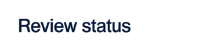
We also tried Qwen Image Edit 2511 on the identical label crop, with the same wording and instructions. It returned the correct words, but they looked darker and heavier than the regular Arial source. That was not a closer match in this case, so FLUX remains the default for English edits.
Two real results from the same PNG input and replacement request, generated on September 20, 2026. These are unretouched crops, enlarged for inspection. Both spell “Review status” correctly. The second result has a darker, heavier appearance; neither exactly reproduces the source typography. Inspect the complete Qwen download.
This is one comparison using each model’s configured output settings, not a general ranking. Inspect the weight, spacing, and color against nearby labels before using an edited screenshot. A different model can produce a different result without preserving the font better.
Edit Screenshot Text for Mockups, Help Articles, and Presentations
A saved screenshot is a flat picture of an interface. Its words may look like live app text, but they are pixels in the saved file. This screenshot text editor replaces one selected area so you can update a small piece of wording in a product mockup, help article, presentation, or design discussion. You do not need to recreate the surrounding screen first.
Use the editor to revise a clear panel heading, an example project name, or a short navigation label with space around it. Use screenshots you own or are allowed to modify, and identify edited mockups as examples when the context could be confusing. An edited screenshot is not evidence that the underlying app or account changed.
Before you edit screenshot text online, check whether the original product or design is available. Changing the source and taking a fresh screenshot is often more accurate. Use this tool when the exported screenshot is what you have and the adjustment is small. The image text editing method guide helps you decide when a pixel edit is appropriate.
Prepare Phone and Desktop Screenshots for Editing
The saved image matters more than the operating system that captured it. You can edit screenshot text from a phone, tablet, or desktop browser when the file meets the same upload limits. The preparation below helps keep one text change separate from the surrounding UI.
Edit screenshot text in a phone app mockup
Open the original capture from your photo library, not a reduced preview from a conversation. Check that the whole phrase is readable before uploading it. A tall phone image may look small in the editor; rotate the device if that helps you draw a more precise rectangle. Keep the status bar and navigation outside your selection unless they are the specific area being reviewed.
Update a desktop product heading
To change text in a dashboard screenshot, choose the heading that needs a wording change and leave its neighboring cards outside the box. A sidebar may repeat the same project name. Select only the occurrence you intend to change, then verify both locations in the comparison. Keep the output clearly identified as a mockup when the real product still shows different wording.
Revise an example label for a training slide
A lesson may need a shorter example label so readers can follow a step. Replace the label on the source capture before placing it in the slide, rather than uploading a screenshot of the entire presentation. Compare the full-size result, then inspect it again at the smaller size used in the lesson. A label that looks clear when enlarged can become difficult to read after the slide scales it down.
Prepare a long scrolling screenshot
If a capture exceeds the 6,000-pixel edge or 12-megapixel limit, crop a copy to the relevant screen section first. You can then replace words within that smaller image. Keep enough surrounding interface for context, and remember that the download will use the cropped file’s dimensions. The editor cannot join the result back into the original scrolling capture automatically.
These preparation steps work best when you start with one legible line. The examples above show a large heading and an 18 px label; the smaller label has a visible weight difference. Crowded controls still need a separate, careful quality check.
How to Edit Screenshot Text Online, Step by Step
Upload the original screenshot. Choose a PNG, JPG, or WebP under 10 MiB. Keep its native resolution whenever possible. Taking a second screenshot of the first image can reduce small-text detail before the edit even begins.
Select one label or phrase. Drag around all of its letters and leave a small margin of background. Include descenders and any shadow, but avoid nearby icons, separators, and neighboring text. A precise selection matters most in a crowded interface.
Type both versions. Enter the visible original wording, then the replacement. Match case and punctuation. Short replacements with a similar visual width have more room to retain the screenshot’s text size and alignment.
Replace and compare. Wait for the result, switch between the two previews, and read the complete new phrase. Check the surrounding control as well as the letters. A button or tab should still look like the same component.
Inspect and save the PNG. Open Inspect details and choose 100% to check small letters at their original size. Switch between Original and Edited without losing your viewing position, then download the full-size image. The export keeps the source dimensions; it does not create an editable app screen or layered design file.
Sign in to edit screenshot text online with two welcome credits, granted once per account. Each generation uses one credit. Credit purchases are currently closed. In this editor, review one text area at a time before starting another change.
Edit Screenshot Text Without Selecting Nearby Controls
Leave the control boundary outside the box
To edit screenshot text beside a toggle, select the wording with enough padding to include the full letters, but stop before the toggle. The browser copies only the selected rectangle back into the screenshot, so keeping controls outside that rectangle prevents their pixels from being replaced by generated output.
Choose the intended occurrence of repeated words
A dashboard may show the same project name in its sidebar and main heading. The selection identifies the location you want to change. Keep the other occurrence outside the box and check it in the final image. Entering the original words alone does not identify every instance that should be updated across a screen.
Avoid expanding one label into a sentence
When you replace a button label, a much longer replacement can become too small or run into a neighboring element. Rewrite it more briefly before generating. If you need a new layout, update the app or design source rather than expecting a screenshot edit to move controls.
A wider box is not automatically better. Include useful background around the letters, not several unrelated labels. If matching the original type is the main challenge, see how to match the original text style and compare letter height, weight, and spacing separately.
Check the Replacement Text and the Surrounding Interface
Before sharing the edited screenshot, inspect small UI fonts for errors a large heading may hide. Look for softened edges, doubled strokes, wrong punctuation, and an uneven baseline. Read numbers character by character. Then check the selected background for a patch or color shift, especially on subtle gray panels and gradients. A clean preview at a reduced size is not enough.
The AI receives the selected text area with surrounding context. Only your selected rectangle is composited back into the original screenshot. Content outside it remains from the source image, but pixels inside it can change. A border check catches some large background changes; it does not check spelling or guarantee an exact font match.
In a previous narrow button test, “START FREE TRIAL” changed to an incorrect rendering of “VIEW PRICING.” That failure is why we recommend clear text, sensible padding, and a full-size review. Tiny labels, heavily compressed captures, and tightly packed controls remain difficult. For a JPG screenshot with halos around letters, review the JPG compression guidance first.
Edit Screenshot Text Online: Common Questions
Can I edit screenshot text online from my phone?
Yes. Upload your screen capture as an opaque JPG, PNG, or WebP within the size limits. On a touch screen, drag across the image to select a phrase. A large phone capture may display smaller in the preview, so check the downloaded result at its full resolution.
Can I replace words in a long scrolling screenshot?
Only if neither edge exceeds 6,000 pixels and the image stays within 12 megapixels and 10 MiB. Crop a very long capture to the relevant section before uploading. Enlarging tiny letters after capture does not restore missing detail.
Can I edit screenshot text without changing nearby icons?
Pixels outside your selection are copied from the original image. Items inside the selected rectangle may be modified by the model. Keep neighboring icons, dividers, and unrelated text outside the box, then compare the output before sharing it.
Why can’t I click a word and start typing?
A screenshot has no live text fields. The editor needs an original phrase, a replacement, and a rectangular selection so it can reconstruct the relevant pixels. If you still have the editable design or app, change its real text there instead.
Does changing the screenshot also update the app?
No. Only the exported image changes. Your underlying website, account, messages, and app data are unaffected. Keep demonstration screenshots clearly labeled when presenting proposed wording or fictional example content.
Can I use this to redact private information?
This tool generates replacement text and is not a verified redaction workflow. Remove sensitive information before uploading it. A crop and some surrounding context go to the AI provider; review the privacy page for processing and retention details.
More Help with Screenshot Fonts and Editing Methods