Use the JPG text editor to replace an existing heading, caption, or short label in your image. Select the phrase, enter new wording, and compare the font and background before downloading a full-size PNG.
Sign in for 2 free editsOne precise area at a timeFull-size PNG download
Editor
1Upload your image
2Select and replace
3Compare and download
Single text edit
Replace what you selected
Loading a sample does not run AI or use credits. Check the selection and text before applying.
Step 1: Upload an image, then drag a box around one text area.
Loading…
Each generation uses 1 credit. Purchases are closed; editing pauses when your free credits run out.
The selected area and some surrounding context are sent to a third-party AI provider. Clear, horizontal text works best. Chinese edits are experimental; review every character before downloading. Results are temporary.
Choose free manual editing for a flat background, or use AI for more complex repairs. Each account receives 2 free credits once. They do not reset daily. JPG, PNG, WebP · 10 MiB
ONE IMAGE. A NEW POSSIBILITY.
Good designs deserve a second life.
Your exported JPG can still have a next chapter. Explore event posters, product promotions and other finished graphics with real text replacements, all ready to try.
Reuse a finished event poster when the theme or season changes. This floral design pairs a serif title with rich photography. Select the whole headline, replace the words and compare the letter shapes before you share the next edition.
Refresh a travel video cover without starting your artwork again. The large white title sits over a mountain photograph, so the result needs more than correct spelling: slide across the trees and letter edges to inspect the background, contrast and spacing.
Turn an existing coffee graphic into a starting point for another product. Change the blend name while leaving the cup, beans and supporting copy outside the selection. A replacement of similar length gives the new wording room to fit naturally.
Adapt a travel post for a different editorial angle. The postcard photograph and blue layout stay outside the selected title. Try your own short phrase, then check how its weight and line length work with the rest of the composition.
Prepare a product walkthrough using this fictional studio workspace. Replace its main heading without recreating the navigation, image cards or status labels. Open the full-size result to check the smaller letter details before adding it to a presentation.
Original sample designs with licensed photography. Every after image is an actual output from this editor, without manual retouching. Letter shapes and spacing can vary; open the full result to inspect it.
JPG Text Editor Example: A Real Serif Title Replacement
To check the JPG text editor, we exported this original poster as a JPEG at 88% quality, using 72 px Georgia for the title. The AI changed “Spring Market” to “Autumn Market.” Compare the letter shapes and the cream background below; the result keeps a similar serif appearance, but does not prove an exact font match.
BeforeAfter
“Spring Market” → “Autumn Market”Original sample: Georgia, 72 px, saved as JPEG at 88% quality. The result keeps the green serif appearance and readable replacement, with small differences in letter shapes and spacing.Open the original image or the edited image to inspect it at full size.
A Compressed JPG: Replacing a Title and Correcting Background Color
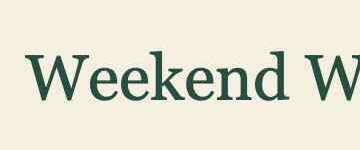
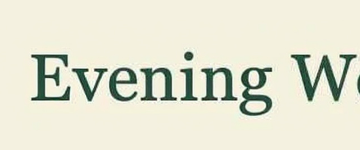
We also tried a lower-quality source: an original poster with a 64 px Georgia title, exported using a browser JPEG quality setting of 0.35. The task was to replace “Weekend Workshop” with “Evening Workshop.” A selection around the title kept the border, subtitle, and footer outside the edited area.
BeforeAfter
Selection detail. The first word and selection edge after automatic background correction. Inspect the letter shapes and the remaining edge artifacts. These are unretouched crops of the images above.
“Weekend Workshop” → “Evening Workshop”Original sample: Georgia, 64 px, exported as JPEG with a browser quality setting of 0.35. This download reuses the same real model output through the updated editor, which automatically corrects a slight color cast on a nearly uniform background. The rectangular patch is much less visible; letter shapes still differ and some edge artifacts remain. No new generation or manual retouching was used.Compare the earlier download with its visible background color shift.Open the original image or the edited image to inspect it at full size.
The first download had readable words but a lighter rectangle behind the title. Comparing the source and model output revealed a slight background color shift. We replayed that same result through the updated JPG text editor: it now corrects small color differences when both backgrounds are nearly uniform. The image above is the new download; the earlier version remains linked for comparison.
The patch is much less visible, but this is not an exact font match. Some edge artifacts remain. The correction does not reconstruct textured artwork, repair a gradient, or recover detail lost to JPEG compression. Compare the entire selection before publishing. Use a cleaner source when available, or return to the editable poster when precise typography is required. PNG export avoids another JPEG save; it cannot recover missing detail.
These examples were generated with this editor using FLUX Kontext Pro on September 20, 2026, then composited onto the originals as PNGs. No manual retouching was applied. Open the images to inspect the full-size results.
How a JPG Text Editor Changes Words in a Flat Image
A JPG stores visible text as pixels. The heading, background, and decorative elements have been flattened into the same pixel image. Clicking a letter cannot bring back its original text box. A JPG text editor has to replace the old letter pixels and reconstruct the area around the new wording.
The editor combines those steps for one selected phrase. It uses the visible text as a reference for the replacement’s style, then places the edited rectangle back into your original image. It is useful for a small wording change on a flyer, exported graphic, or clear label when the editable source is unavailable.
This is also a JPEG text editor: JPG and JPEG refer to the same image format, and both extensions work here. The important differences are resolution, compression, and the amount of usable background around the text. If you have the original design file, changing its live text is usually the better way to preserve exact typography. See the method guide before rebuilding a design that is still editable.
When to Use the JPG Text Editor
A flyer heading, a diagram label, and a photo caption need different selections, even when each involves only a few words. Start with the exported image you actually need to update. These workflows explain preparation and review; the two examples above show actual generated results and the differences that still need checking.
Update a heading on an exported flyer
A flyer saved for sharing may only need a revised session name. Open the highest-quality JPEG export and select the entire heading, including any shadow. Keep the new name near the old one’s visual width. If the words need a different line break, use the original layout application so the surrounding content can move too.
Replace a short caption in a JPEG graphic
You can replace a caption that is already part of your graphic. A plain background gives you a simpler area to inspect than a busy photograph. After the edit, look at the spaces where old letters used to be, not just the new wording. Texture or gradients within the selected region may need a different approach.
Correct a label on an exported diagram
Upload the diagram to the JPG text editor at its original resolution. Draw around the label while leaving arrows, connecting lines, and neighboring labels outside the rectangle. Write the complete term as it appears, then the corrected version. A new technical term should be checked character by character before the diagram is shared.
Prepare an image saved from a message
A messaging app may have reduced the file before you received it. Ask for the original attachment if the letters look blocky or blurred. Renaming a PNG to .jpg changes neither its pixels nor its actual file format. A higher-quality source gives the model clearer letter shapes to work with.
Keep an original JPG, the downloaded PNG, and any later JPEG export as separate files. This makes it easier to compare the edited image with your source and spot new compression damage after another application saves the image. The tool edits one phrase per attempt; it is not a batch conversion or full-page layout service.
How to Use the JPG Text Editor Online
Choose a clear JPG or JPEG. Upload the original export instead of a copy downloaded from a chat preview. The file must be no larger than 10 MiB, with neither edge above 6,000 pixels and a maximum of 12 megapixels.
Draw around one complete phrase. Include every letter and its effects, plus a small background margin. Exclude adjacent illustrations and other text. The box defines the part of the final image that can be replaced.
Enter both text versions. Type the original words accurately, followed by your replacement. Keep it to a short single line. A similar visual width makes it easier to retain the existing layout without shrinking the lettering.
Generate and inspect. Compare the before and after views. Open Inspect details at 100% or 200% to examine spelling, text weight, and the background under the old letters. JPEG artifacts can make the result appear softer than a clean source image, even when the wording is correct.
Download the edited PNG. Keep the original JPG separately. Open the download at its full size before adding it to a presentation, website, or publication. The download is a flat image rather than editable type layers.
Sign in to use the JPG text editor with two free credits per account, granted once. Credit purchases are currently closed. If an attempt fails, check the error and your selection before trying again; a revised selection is more useful than repeating an unchanged request.
Get Clearer Results from the JPG Text Editor
Look for halos around the original letters
Before you edit text in a JPG, look for pale or dark compression fringes beside sharp text edges. When the original phrase is replaced, fragments of those fringes may remain if the selection is too tight. Include the full visible edge around the lettering and inspect the finished rectangle for old-letter traces. Avoid including unrelated details simply to make the box larger.
Start from a higher-quality export when possible
A low-resolution JPG may blend several small strokes into a single blurred shape. The model works with the available detail; enlarging the file cannot recover missing strokes. Ask for the source export or use a clearer version before spending attempts on an image whose words are already difficult to read.
Keep realistic expectations for texture and gradients
There is less background detail to reconstruct on a plain card than across a photograph. Within your selection, the model must rebuild the surface behind the old letters. Fine grain, repeating patterns, shadows, and photographic texture can change. The rest of the image comes from your source, but the selected background still needs your review.
To judge typography, compare the replacement’s height, weight, and baseline with nearby unchanged text. Our guide to keeping the original font appearance shows what visual matching means and why it is different from recovering the exact font file. A matching color alone does not establish a font match.
Why the JPG Text Editor Downloads a PNG
The JPG text editor accepts JPG or JPEG and exports PNG. That avoids applying another round of lossy JPEG compression when the edited rectangle is combined with the original. Existing compression artifacts may remain in the uploaded image; clear source lettering still matters even with a lossless output format.
Your edited image keeps the original width and height and may be larger in file size than the JPG. The browser composes the result from the decoded original image and the selected replacement. Pixels outside the box are retained through that composition; the original JPEG file’s metadata and compressed byte structure are not preserved as a JPEG export.
If your publishing system requires JPEG, keep the downloaded PNG as your master and convert a separate copy in an image editor. Check small lettering again after conversion. If the image is really a captured interface, the screenshot text workflow provides more specific advice for dense labels and neighboring controls.
Questions About Editing Text in JPG and JPEG Images
Is this JPG text editor also a JPEG text editor?
Yes. Both extensions refer to the same JPEG format. Choose a static image within the upload limits. The editor also accepts opaque PNG and WebP images, so you do not need to convert those formats to JPG before using it.
Can the JPG text editor match the original font?
The model uses the image itself as a visual reference. It tries to retain the lettering’s style, size, and color, but it does not identify or load the original typeface. Use a source design with the correct font when an exact match is required.
Does the JPG text editor replace existing text or add a new caption?
It replaces visible text in your selected area. It requires original and replacement wording. If you want a new caption in an empty space, a conventional image editor with a text layer gives you more direct placement and formatting control.
Why is my JPG text editor download a PNG?
PNG avoids another round of lossy JPEG compression when the edited area is combined with your original. The download keeps the source dimensions. Convert a copy afterward if JPEG is required by your destination, and review the converted file before publishing.
Can the JPEG text editor fix blurry letters?
Not reliably. The model may infer a plausible shape, but missing detail makes exact lettering and styling uncertain. Use a better source when possible. Do not treat a visually cleaner output as proof that the text has been reconstructed correctly.
What does the JPG text editor upload?
The original is opened in your browser. A crop around the selected text, including some surrounding context, is sent for AI processing. Results are temporary; download the finished image before leaving the page. The privacy page explains processing and retention.